Guide: PNGtuber avatar in Streamlabs Desktop
Last updated:
Streamlabs Desktop doesn't offer an obs-websocket interface. Your avatar therefore learns when you speak via the control page: a web page that runs in your normal browser, measures your microphone there and only sends “speaking/silent” to the overlay.
1. Add the overlay
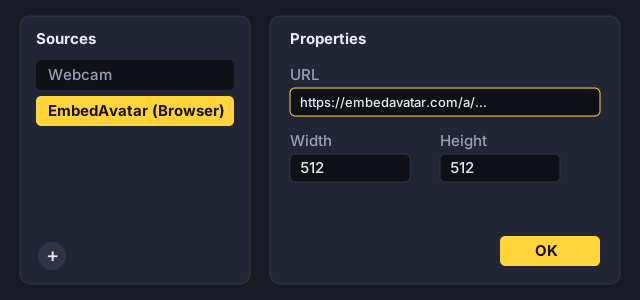
In EmbedAvatar, open your overlay and the Streamlabs, Meld & others tab. Copy the overlay URL. In Streamlabs Desktop, add a Browser Source and paste the URL; width and height match your avatar size.
2. Create the control page
Click Create control page link. The link is shown only once – bookmark it. Anyone who knows it can make your avatar talk.
3. Open the control page
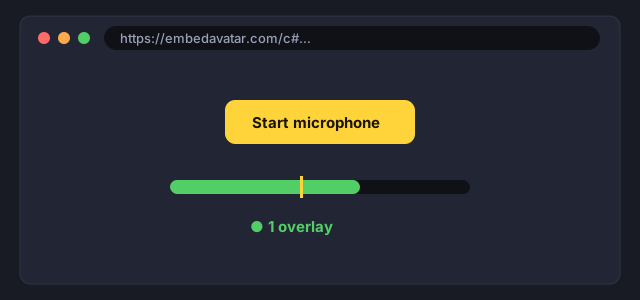
Open the link in Chrome, Edge or Firefox, click Start microphone and allow the microphone. The page shows how many overlays are connected.
Tips
- Keep the tab open. If your browser offers it, disable energy saving for this tab.
- Audio stays in your browser; only the state “speaking/silent” passes through our server.
- If you need a new link, create it in the assistant – the old one stops working immediately.
- Noise or keyboard triggers speaking? Set the threshold in the “Streamlabs, Meld & others” tab below the control page status (preset “Noise-proof” or Calibrate). The level meter shows live what the control page measures. A headset or a microphone close to your mouth helps more than any setting.