Guide: PNGtuber avatar in OBS Studio
Last updated:
Voice activation works best with OBS Studio (version 28 or later): the overlay reads your microphone level directly from OBS. No microphone permission is needed in the browser source, and no audio leaves your PC.
1. Account and avatar
Create a free account. You immediately get a starter avatar and an overlay. In the editor, upload your own images for “idle” and “speaking”, optionally one for blinking.
2. Enable obs-websocket
In OBS, open Tools → WebSocket Server Settings and tick Enable WebSocket server. The port is usually 4455. Use Show Connect Info to copy the server password.
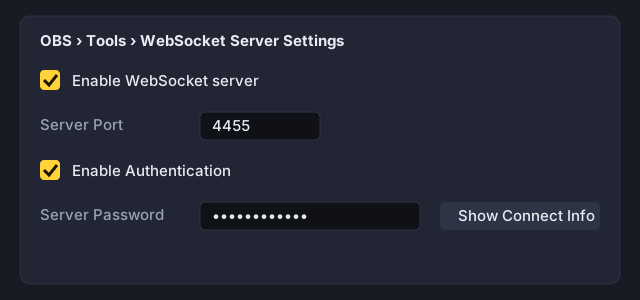
3. Let EmbedAvatar build the URL
In EmbedAvatar, open your overlay and the OBS Studio tab. Paste the password – it stays in your browser and is never sent to us. The assistant builds the URL from it.
Important: the URL contains your OBS password. Don't show it on stream and don't share it. It is stored in plain text in your OBS scene collection and in the properties dialog of the browser source.
4. Add the browser source
Drag the Drag into OBS button straight onto your scene, or add a new Browser source in OBS and paste the copied URL. Width and height match your avatar size (default 512 × 512).
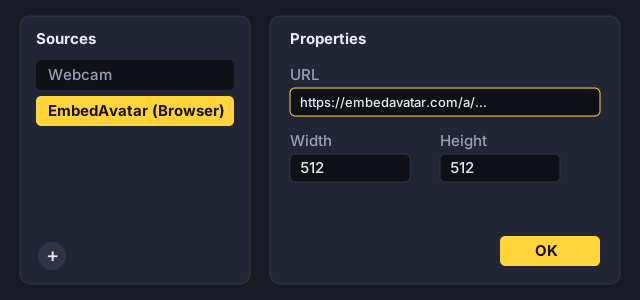
5. Check and calibrate
Keep the setup page open: it shows whether the overlay reaches OBS (“connected”, “password wrong” or “not reachable”) and your live level. Below it you set the threshold: the bar shows your level, the yellow mark the threshold. Move it just right of where the bar sits while you are quiet. The presets “Sensitive”, “Balanced” and “Noise-proof” are a good start. Calibrate measures three seconds of silence and three seconds of speech and suggests a threshold.
If you have several microphones, pick the right OBS input there.
6. Filter out noise and keyboard
EmbedAvatar recognizes steady noise (fans, hum) and short clicks by itself and ignores them. It gets even more reliable when OBS cleans the sound first. In the OBS audio mixer, click ⋮ → Filters on your microphone and add:
- Noise Suppression with the RNNoise method (removes fans, hiss and much of the keyboard noise).
- Noise Gate: close threshold about −45 dB, open threshold about −35 dB. Below that the microphone stays silent.
The filters act on the level the overlay reads from OBS. Calibrate once more afterwards.
Without a browser source: pop out a window
In the editor, Add to OBS has a Pop out window button. It opens your avatar in its own window that listens to this browser's microphone. In OBS, capture that window with Window Capture and remove the background with a Chroma Key filter in the chosen color (default: green).
Common problems
- “Password wrong”: copy the password from OBS again and update the URL in the browser source.
- “Not reachable”: is the WebSocket server enabled? Is the port correct? Is OBS running?
- Avatar seems out of sync: set a sync offset for your microphone under Edit → Advanced Audio Properties (e.g. 50–150 ms).
- The link got out: renew the link in the assistant and generate a new password in OBS.